Generate Shopify API Credentials for StrikeTru Connector

Generate Shopify API Credentials

1. Login to the sandbox store and find the "Dev Dashboard" to visit the dashboard.


2. Create an app by clicking on "Create App" and name it "StrikeTru's App Credentials".

3. Navigate to "Access" and select the Access Scope and Click on "Done".


Select the below Scope:


4. Click on "Release" once the access scope is selected.


5. Install the app on the Shopify Store you are generating these credentials for (e.g Staging store or Production store).


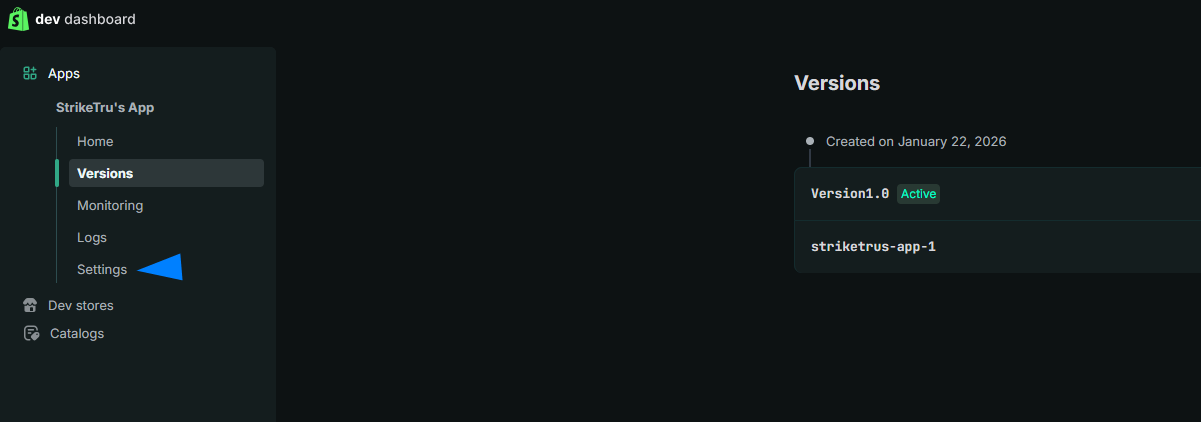
6. From the left menu, click on "Settings" to view the API credentials. Copy the "Client ID" and  "Secret" to Share.


    • Related Articles

    • Getting Started

      Overview This connector delivers rich product content from Akeneo to Shopify fast, continuously. It is a no-code app with a simple UI so business users can manage products, variants, media, metafields, categories, and more. App Compatibility Akeneo: ...
    • Akeneo PIM Connector for Shopify - Frequently Asked Questions

      Product Sync What makes a product eligible for creation in Shopify? Product must have a Title in Akeneo and be configured on the connector to sync to Shopify. What fields are created when a product is synced? Title, description, handle, images, ...
    • Fixing Akeneo API Connection Issue on Bitnami Package for Akeneo

      If you are using the Bitnami package for Akeneo and encountered this message “Parameter ‘client_id’ is missing or does not match any client, or the secret is invalid” error when configuring the API connection between Akeneo and Shopify via ...
    • Handling SKU Updates Between PIM and Shopify

      Overview This document explains how SKU (identifier) updates should be handled when syncing products between a Akeneo and Shopify using the StrikeTru Connector. The process depends on how products are mapped between the two systems. Product Mapping ...
    • Connection Setup

      Connector Configuration Setup the Connector Configuration under the “Configuration” tab in the Connector. Save changes by clicking on “Save Config” at the bottom of each section. Connection Setup Create a connection between the PIM & Shopify ...